


The following provides step-by-step guidance and information on managing and updating data in gift-funded Project Grants. Maintaining accurate data in the following specific fields is critical, as it directly populates the Gift Fund Utilization Report (GFUR). Following these procedures will ensure data integrity, compliance with SPG 602.03, and reliable reporting across all gift fund stewardship and management activities.
Maintain DART Data
Important Notes
Gift Fund Utilization Report data, using both Attribute and Documentation data fields, is recorded in DART on the Endowment Purpose Record. If there is no endowment for the fund, use the Expendable Purpose Record for recording PG Review Indicators and other GFUR data.
If the Designation LID begins with a ‘3’ it’s Expendable–if it begins with a ‘5’ or a ‘7’ it’s Endowed. Designation and Purpose records remain separate due to DART’s data model.
Project Grants established by a department and funded by internal transfers will not be recorded in DART. These will be flagged in the GFUR as DART Purpose Not Required and thus cannot report a PG Review Indicator (or other Purpose Record data).
Project Grants established by donor gifts are entered as a DART Designation when the new financial chartfield is created. PG numbers must be correctly related to their DART Purpose Record in order for data to flow to the GFUR. Required DART Purpose Missing flags on the GFUR indicate that a PG is not related to a Purpose Record within DART, but should be. See the Related Funds section for more information.
OARS Requirements
Adding Attributes or Documentation via a batch upload can be completed regardless of DART access, role, or title. See Batch Upload instructions in the Step-by-Step Processes below for more information.
Adding, editing, or removing Attributes and Documentation directly in DART requires certain role privileges. Viewing scanned documents related to gift agreements also requires certain role privileges.
Each of the following roles is requested through the Online Access Request System (OARS). A best practice is to use the comment section in OARS to share that your request is to fulfill GFSM responsibilities within your unit.
DART Donor Intent
This role is intended for financial or development staff within schools, colleges, campuses, and units. It enables adding, editing, and deleting attributes, documentation, and notes for funds to track donor gift intentions. Financial staff do not require the prerequisite DART Development View role to be granted this role. The completion of DEVE103 – DART Donor Intent is required for this role.
OARS request navigation: DART > School/College/Unit Access > DART Donor Intent (DART)
Imaging Development View
This role is intended for development staff as well as other U-M staff who need to view documents pertaining to donors. This includes correspondence with donors, endowment reports, gift agreements, legal documentation, etc.
OARS request navigation: Document Imaging > Development Documents > DEVELOPMENT View (IMG)
Step-by-Step Processes
How to Find a Gift Purpose Record in DART
Locate the appropriate gift fund record in DART by performing a Purpose Search
Go to DART
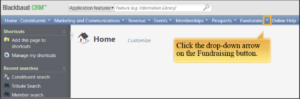
- Select the Fundraising drop-down arrow.
- Select Purpose search.
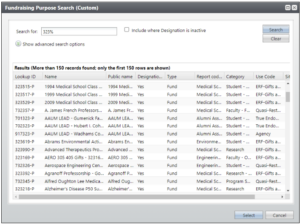
- Enter the Designation LID/shortcode (i.e., fund number), or a portion of it.
Under advanced search options, enter other search criteria known for the fund. - Click Search.
- Select the appropriate fund from your search results.
PGRIs and Related Funds
Project Grant Review Indicators
Per Standard Practice Guide (SPG) 602.03, administrative units must assign a Project Grant Review Indicator (PGRI) in DART for any Project/Grant (PG) categorized with Low or Moderate utilization. These indicators flag the strategic action plan being taken by the unit to ensure compliance with donor intent and to optimize resource allocation.
Batch Upload
Using a batch data upload is the most efficient process to follow when assigning PGRIs to multiple funds and does not require the use of DART.
- Visit the Office of University Development’s (OUD) Integrated Data Services page for Updating Information / Batch Templates in DART.
- Locate and download the template, Template_FundraisingPurpose_Attributes_ADD_PG_ReviewIndicator
- Fill out the template, being sure to complete the following steps alongside other required information:
- Format Designation Lookup IDs with a trailing -P (dash followed by the letter P).
- Enter Start and End dates and optional Comment.
- The end date for PGRIs must be no later than June 30th, three fiscal years out from the current fiscal year.
- For entries made in Q4 (April 1st to June 30th), ensure the end date does not exceed the fourth fiscal year from the current fiscal year.
- Upload the completed template.
- Visit the OUD Help Desk and sign in.
- Select Service Catalog.
- Select DEV–DART Data Updates > DEV–DART Batch Updates.
- Select Open a Request and fill out the form.
- Request Choice: select Attributes – Fund.
*Requests typically take up to 5 business days to complete. Contact [email protected], if you need assistance completing your request sooner than the typical turnaround.
Add or Edit in DART
- Locate the appropriate gift fund by performing a Purpose Search.
- Select the Attributes tab and select Add.
- Select PG Review Indicator in the Category dropdown box.
- Enter the appropriate Value (PGRI).
- Enter Start and End dates and optional Comment.
- The end date for PGRIs must be no later than June 30th, three fiscal years out from the current fiscal year.
- For entries made in Q4 (April 1st to June 30th), ensure the end date does not exceed the fourth fiscal year from the current fiscal year.

Related Funds
Related Fund attributes connect records, data, and information between related endowments, quasi-endowments, and expendable funds within PGs.
In the Gift Fund Utilization Report logic, PGs must be correctly related to their gift’s Purpose Record in DART. Required DART Purpose Missing flags on the GFUR indicate that a PG is not related to a Purpose Record within DART, but should be.
Adding the Related GL Project Grant Attribute to a Purpose Record will relate a PG to that specific record.
It is most common to add this attribute to the gift fund’s Endowment Purpose Record, as it is almost always the original record of the donor’s gift and will be the longest-lasting.
However, if the fund is not endowed, then the Related GL Project Grant Attribute should be added to the Expendable Purpose Record.
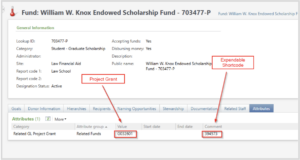
*(below) Example of a Related GL Project Grant Attribute on the Endowment Purpose Record, and use of the Comment field (optional, but encouraged). This is added upon request via a batch upload or directly within DART by users with proper OARS roles (i.e. DART Donor Intent).
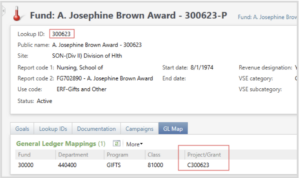
*(below) Example of a Project Grant relation on an Expendable Designation Record. This fund relation is completed by the Gift and Records Administration on records for expendable-only funds in DART.
Batch Upload
Using a batch upload is the most efficient process to follow when assigning Related Fund Attributes to multiple funds and does not require the use of DART.
Visit OUD’s Integrated Data Services page for Updating Information / Batch Templates in DART.
- Locate and download the template, Template_FundraisingPurpose_Related_Fund_Attributes_ADD.
- Fill out the template, being sure to complete the following steps alongside other required information:
- Format Designation Lookup IDs with a trailing -P (dash followed by the letter P).
- Select the appropriate related fund type under Category and enter the corresponding Value. In most cases pertaining to GFSM data, this will be the category Related GL Project Grant with the value being the related PG number.
- Enter a Start date. The process date will be added if the field is left blank.
- Upload the completed template.
- Visit the OUD Help Desk and sign in.
- Select Service Catalog.
- Select DEV–DART Data Updates > DEV–DART Batch Updates.
- Select Open a Request and fill out the form.
- Request Choice: select Attributes – Fund.
*Requests typically take up to 5 business days to complete. Contact [email protected] if you need assistance in completing your request sooner than the typical turnaround.
Add or Edit in DART
- Locate the appropriate gift fund by performing a Purpose Search.
- Select the Attributes tab and select Add.
- Select the appropriate related fund type under Category and enter the corresponding Value. In most cases pertaining to GFSM data, this will be the category Related GL Project Grant with the value being the related PG number.
- Enter a Start date and optional Comment.
Donor Intent
OGC Governing Document Intent
OGC Governing Document Intent is reviewed and updated by the Office of General Counsel in the Office of University Development. OGC Governing Document Intent is the intent of record, stating the officially documented or legally binding purpose (donor intent) of a gift agreement.
Reach out to your OGC Liaison before creating, uploading, or editing OGC Governing Document Intent. Learn more and find contact information on the Office of General Counsel DevConnect Page.
Batch Upload
Using a batch upload is the most efficient process to follow when assigning OGC Governing Document Intent to multiple funds and does not require the use of DART.
- Visit OUD’s Integrated Data Services page for Updating Information / Batch Templates in DART.
- Locate and download the template, Template_FundraisingPurpose_Documentation_Notes_ADD.
- Fill out the template, being sure to complete the following steps alongside other required information:
- Format Designation Lookup IDs with a trailing -P (dash followed by the letter P).
- Select OGC Governing Document Intent under Note Type 1.
- Enter ‘Donor Intent from Gift Agreement’ under Title 1.
- The Author and Notes sections should be completed in partnership with OGC.
- Upload the completed template.
- Visit the OUD Help Desk and sign in.
- Select Service Catalog.
- Select DEV–DART Data Updates > DEV–DART Batch Updates.
- Select Open a Request and fill out the form.
- Request Choice: select Documentation Notes.
*Requests typically take up to 5 business days to complete. Contact [email protected] if you need assistance in completing your request sooner than the typical turnaround.
Add or Edit in DART
- Locate the appropriate gift fund by performing a Purpose Search.
- Select the Documentation tab and select Add, then Note.
- Select OGC Governing Document Intent under Type.
- Add ‘Donor Intent from Gift Agreement’ under Title.
- The Author and Notes sections should be completed in partnership with OGC.
Donor Intent Internal Summary
The purpose or intention of a donor-established gift can be described by units in the Donor Intent Internal Summary Documentation. This is for units to use internally, but is not reviewed or kept up-to-date by OGC or OUD. Donor Intent Internal Summaries should keep language as close as possible, if not an exact match, to the most current version of a gift agreement.
Batch Upload
Using a batch upload is the most efficient process to follow when assigning Donor Intent Internal Summaries to multiple funds and does not require the use of DART.
- Visit OUD’s Integrated Data Services page for Updating Information / Batch Templates in DART.
- Locate and download the template, Template_FundraisingPurpose_Documentation_Notes_ADD.
- Fill out the template, being sure to complete the following steps alongside other required information:
- Format Designation Lookup IDs with a trailing -P (dash followed by the letter P).
- Select Donor Intent Internal Summary under Note Type 1.
- Add a Title, limited to 50 characters.
- Add an internal summary into the Notes section.
- Upload the completed template.
- Visit the OUD Help Desk and sign in.
- Select Service Catalog.
- Select DEV–DART Data Updates > DEV–DART Batch Updates.
- Select Open a Request and fill out the form.
- Request Choice: select Documentation Notes.
*Requests typically take up to 5 business days to complete. Contact [email protected] if you need assistance in completing your request sooner than the typical turnaround.
Add or Edit in DART
- Locate the appropriate gift fund by performing a Purpose Search.
- Select the Documentation tab and select Add, then Note.
- Select Donor Intent Internal Summary under Type.
- Add a Title, limited to 50 characters.
- Add an internal summary into the Notes section.
Maintain Financial Data
PG Contacts and Active Status
Shared Services Center (SSC)
If you have questions or need assistance completing the following expendable fund related requests, contact the Shared Services Center at (734) 615-2000 or [email protected].
Add/Edit an Admin Contact or Principle Investigator on a PG
Multiple PG Changes:
- Download and complete the Multiple Project/Grant Request Excel Form from the SSC – Fin – Project/Grant (Non-Sponsored) and Shortcode Request web page.
- Attach the completed Multiple Request Form template to the e-Form using the paperclip icon in the upper right of the form. You may also attach additional supporting documentation, as needed.
- Click the Submit button to send the request to SSC for processing.
Single PG Change:
- Access the e-Form by selecting “Click here to Submit a Project/Grant (Non-Sponsored) and Shortcode Request” on the right side of the SSC – Fin – Project/Grant (Non-Sponsored) and Shortcode Request page.
- Add the affected PG number and select the new Admin Contact and/or Principle Investigator.
- Click the Submit button to send the request to SSC for processing.
Inactivate a PG
Before requesting a fund be inactivated, ensure the balance at each fund, department, and program level is zero, and confirm that no future revenue is expected for the PG. If your PG holds a negative balance, transfer funds as needed to zero out.
Multiple PG Changes:
- Download and complete the Multiple Project/Grant Request Excel Form from the SSC – Fin – Project/Grant (Non-Sponsored) and Shortcode Request web page.
- Attach the completed Multiple Request Form template to the e-Form using the paperclip icon in the upper right of the form. You may also attach additional supporting documentation, as needed.
- Click the Submit button to send the request to SSC for processing.
Single PG Change:
- Access the e-Form by selecting Click here to Submit a Project/Grant (Non-Sponsored) and Shortcode Request on the right side of the SSC – Fin – Project/Grant (Non-Sponsored) and Shortcode Request page.
- Complete the e-Form, being sure to enter the effective date for the inactivation and the Project/Grant ID or Shortcode to inactivate.
- Click the Submit button to send the request to SSC for processing.
Other GFSM-Related Offerings from The Shared Services Center
Organizational Excellence – Organizational Excellence services are adaptable to meet the needs of your project or team at no charge.
Document Imaging – The Shared Services Center in collaboration with Information & Technology Services (ITS) provides complete, centralized document imaging and management.
Other Accounting Services – Find information on: Journal entries, chartfield requests, approver table maintenance, earmarks (UDC), reconciliations.
Endowment Active Status
Financial Operations (FinOps)
If you have questions or need assistance completing the following endowment-related requests visit the Procurement Services self-service portal, or contact Financial Operations Accounting at (734) 763-4163 or [email protected].
Inactivate an Endowed Fund
- Navigate to the Finance Services FIN-Support GL Maintenance web page and access the Endowment Fund Maintenance Request e-Form on the right.
- Select Inactivation of an Endowment under Endowment Fund Maintenance Request Type.
- Complete the e-Form.
- Click the Submit button to send the request to FinOps for processing.